Where AI Agents Live Between Tasks
Kennel is a fast, native desktop app that lets you run and manage many interactive AI CLI agents — like Claude Code, Kiro CLI, OpenAI Codex, or any tool of your own — side by side in a single window. Organize them into groups, keep them running between tasks, and jump between conversations without juggling terminal tabs.
Most importantly: restart your app or reboot your machine, and every session comes back
exactly where it left off, using the agent's native resume flag (e.g., Claude's --continue or Kiro's --resume).
If you use AI coding agents from the terminal, you already know the pain: a dozen terminal tabs, no idea which agent is waiting for you, and lost context every time you close a window. Kennel fixes that.
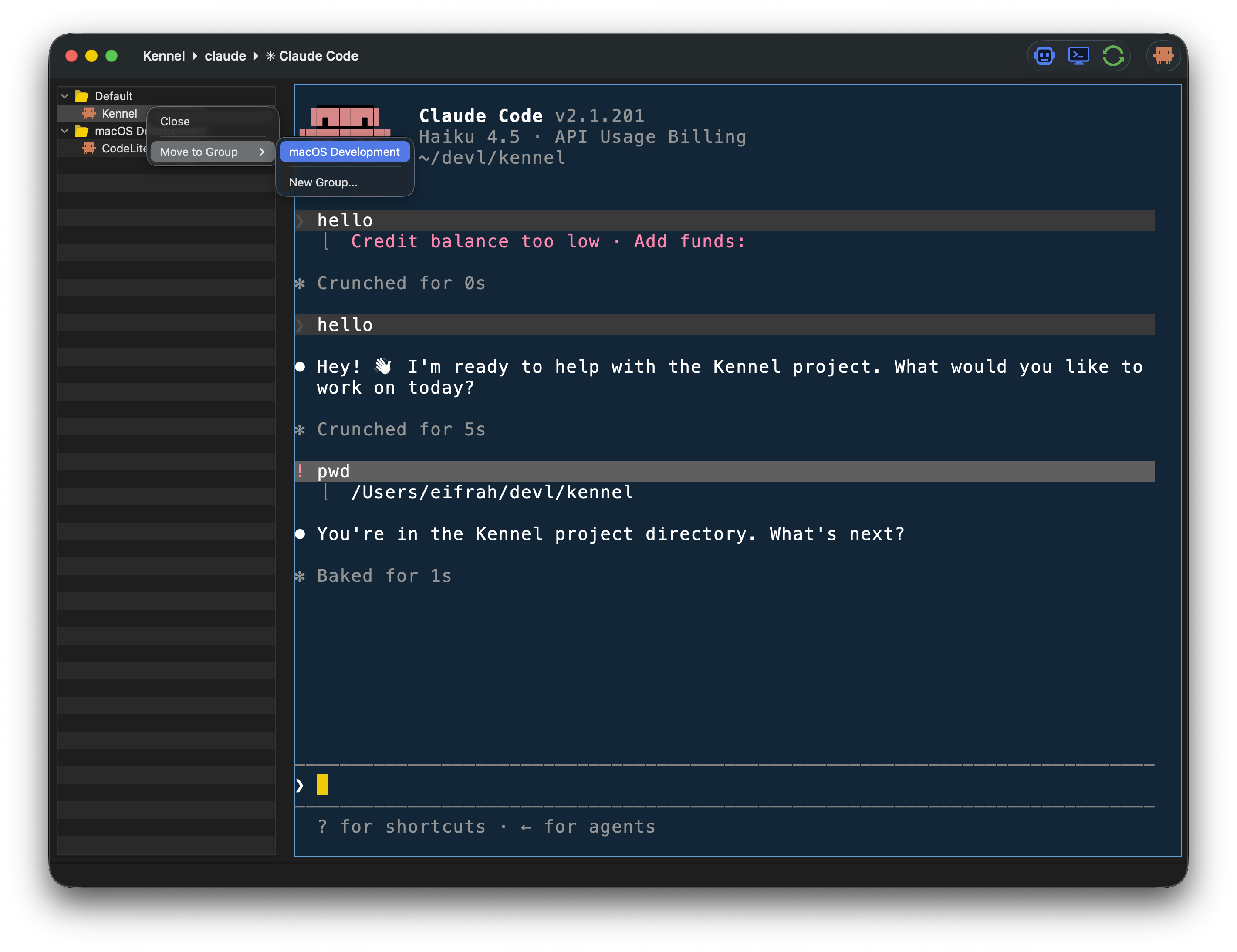
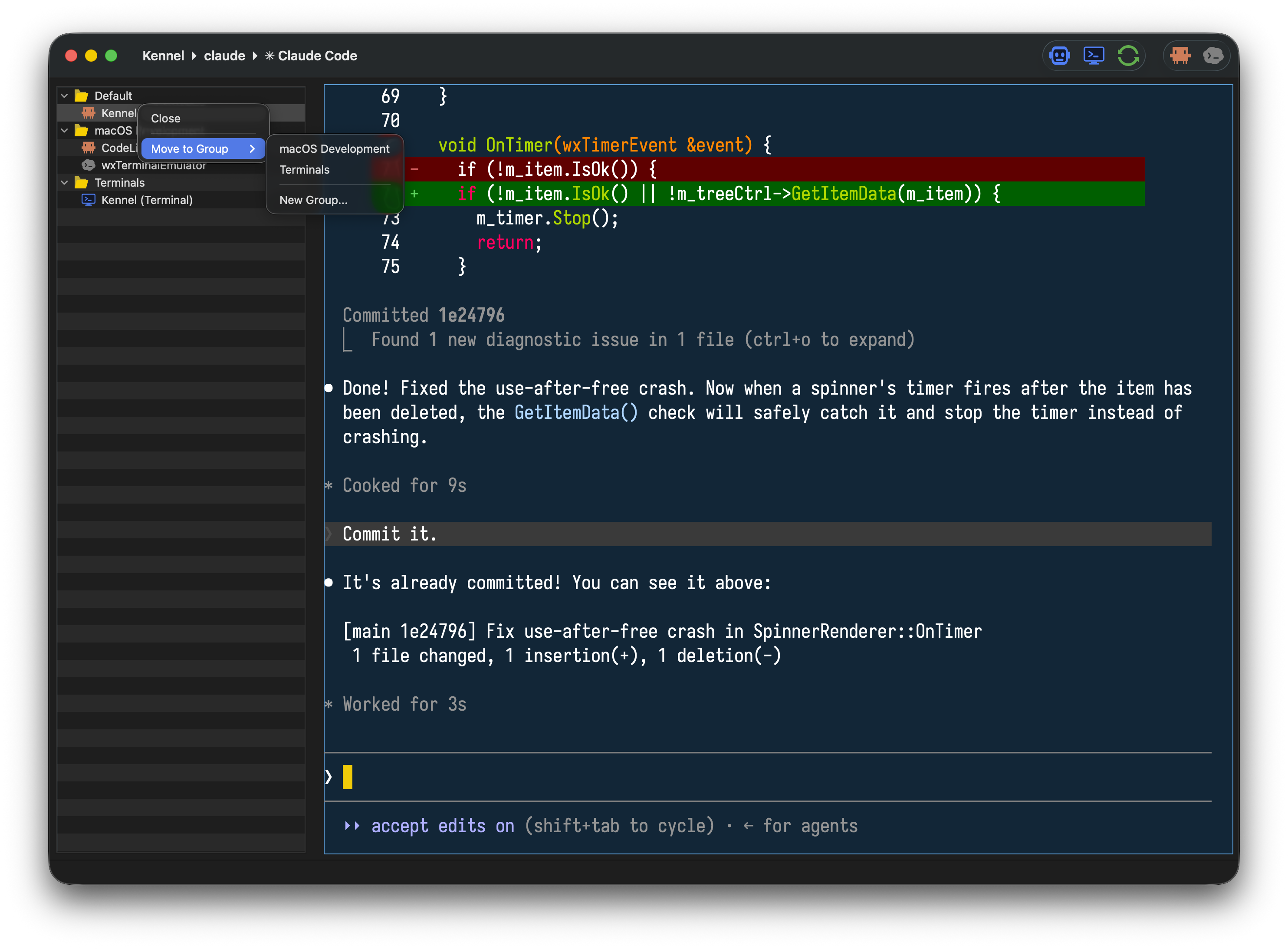
Every agent session lives in a single window, in a tidy sidebar you can organize however you like.
Bucket sessions into groups such as Work, Customer Tickets, or Experiments. Collapse a group to get it out of the way; reopen it when you're back.
Sessions persist between app restarts and resume with their native --resume/--continue flags, so your agent picks up where it left off.
Each session is a real terminal (full PTY), so any interactive CLI works exactly as it does in your shell — colors, prompts, and all.
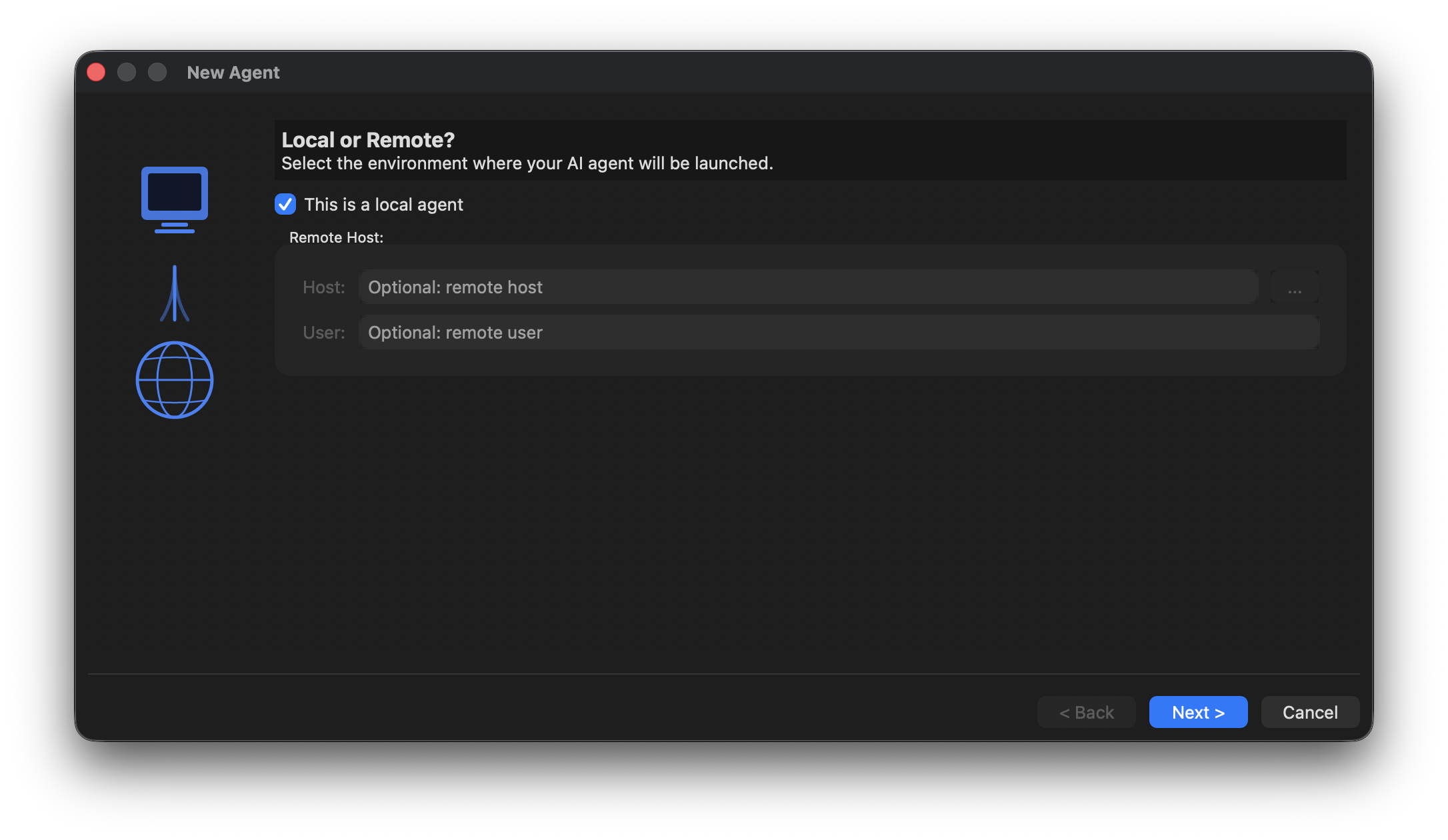
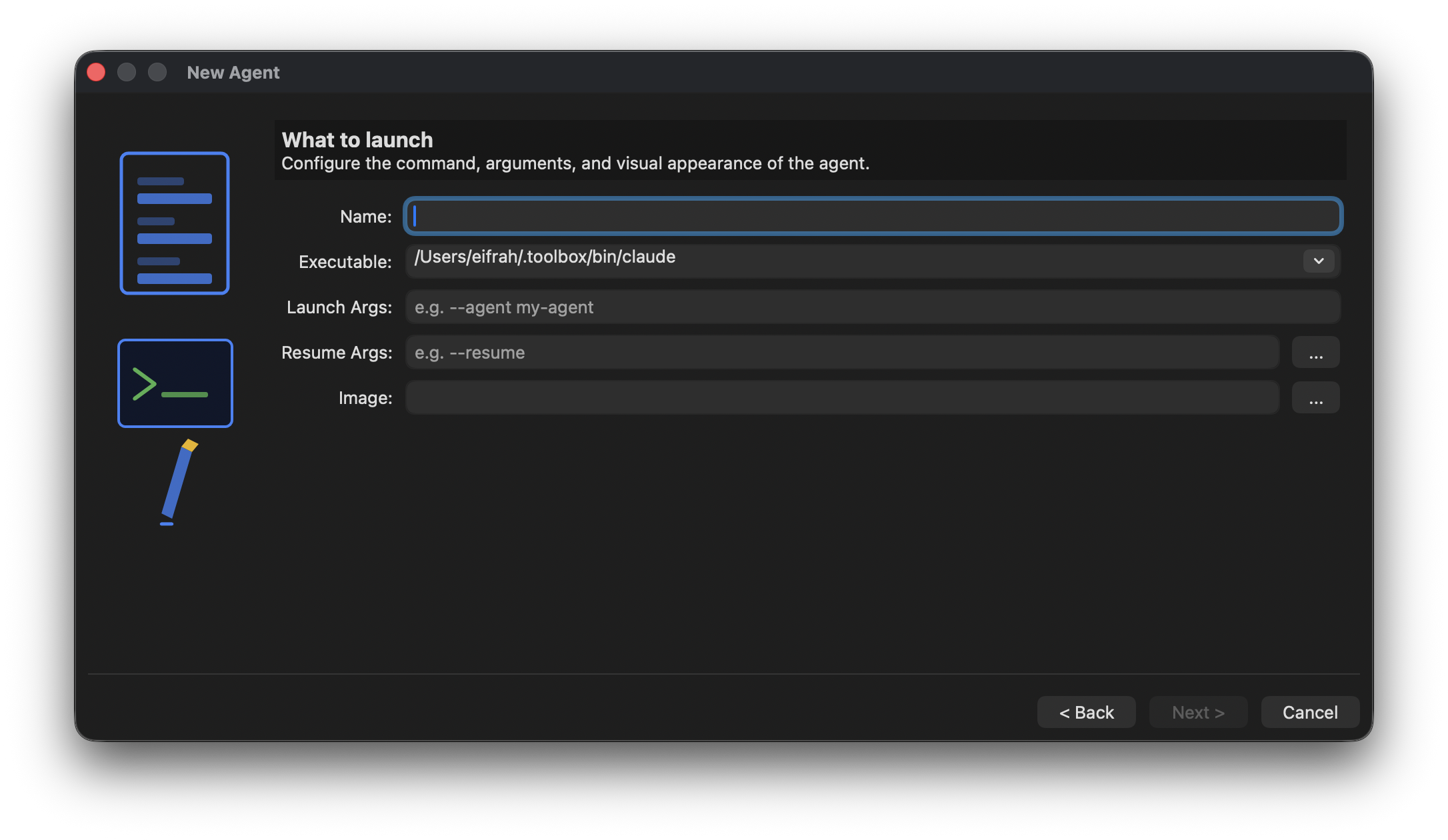
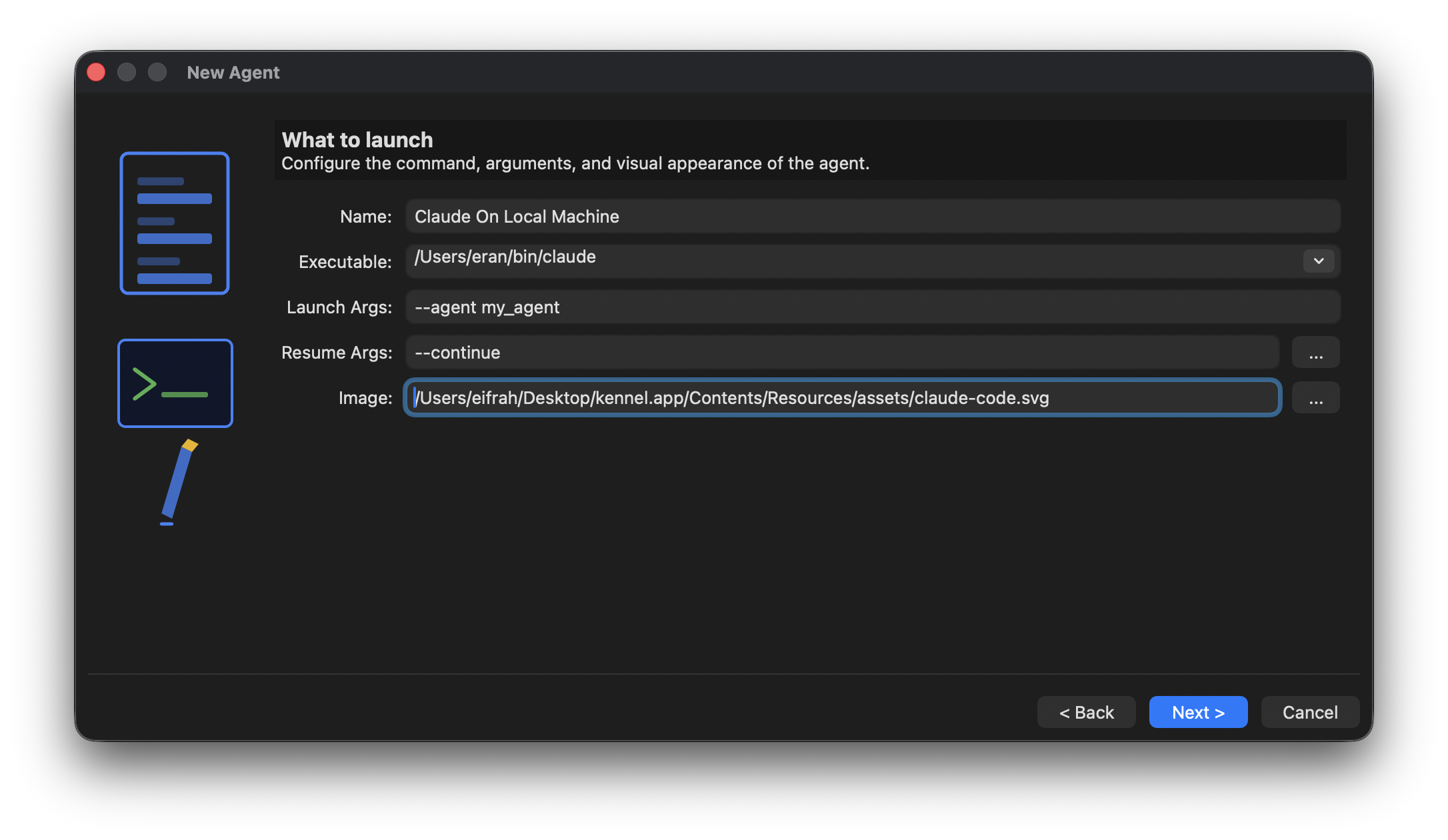
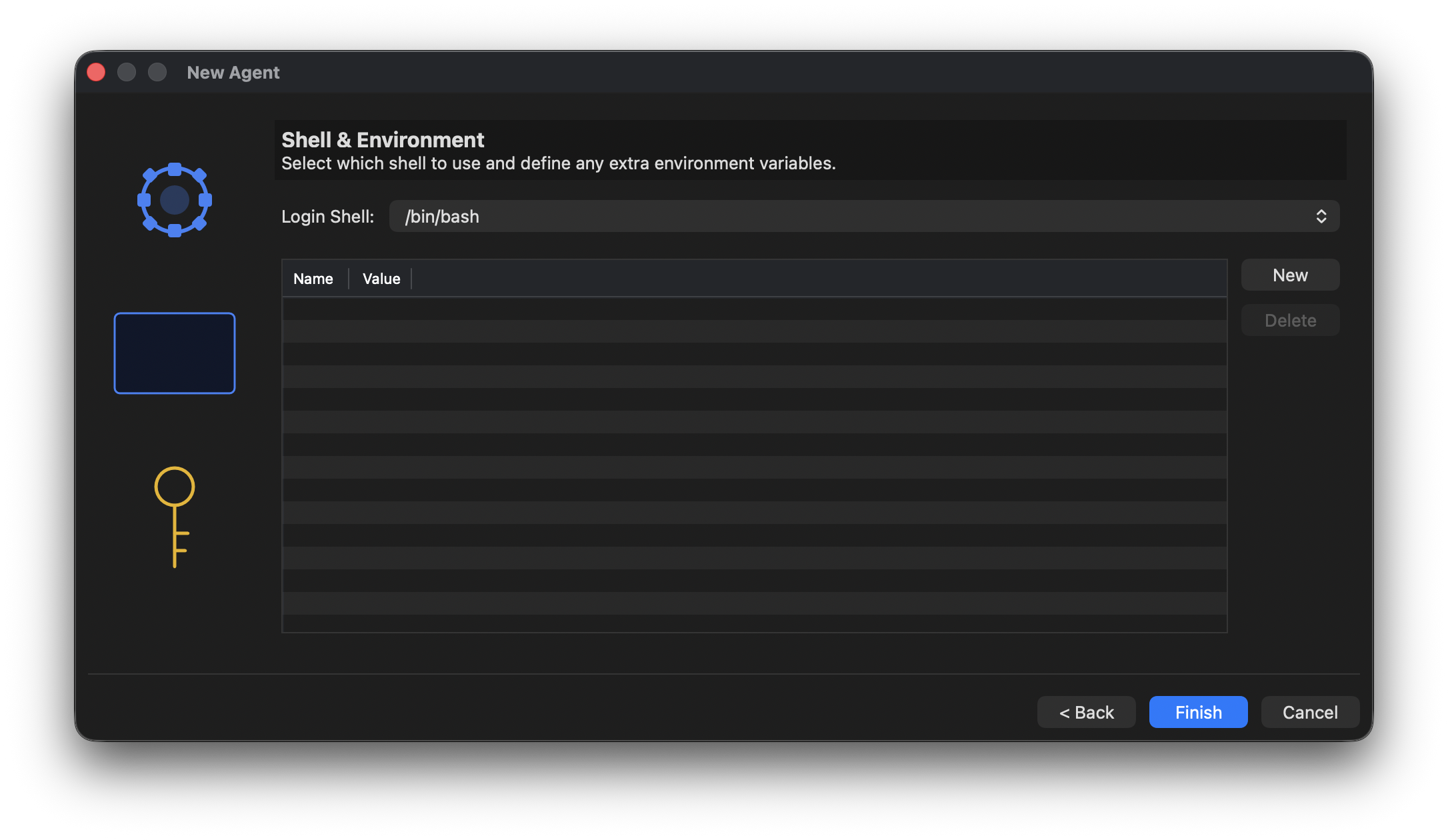
Define new agents through a simple dialog or JSON. Local or over SSH.
Built-in color themes, custom fonts, and per-agent icons.
Kennel has just three things to understand:
| Concept | Description |
|---|---|
| Agent | A definition of how to launch an AI CLI — its executable, arguments, environment, icon, and (optionally) a remote host. Kennel ships with Claude Code, Kiro CLI, and OpenAI Codex predefined. |
| Session | A single, named, running instance of an agent in a working directory. Each session is a live terminal. |
| Group | A folder in the sidebar that holds related sessions. There's always a Default group; create as many others as you want. |
Press Ctrl/Cmd+T, choose File → Start Agent…, or click the ➕ button in the toolbar. The Start Agent dialog lets you set:
Selecting a session in the sidebar brings its terminal to the front. While an agent is busy, its sidebar icon shows a spinner; when it's done, it returns to the agent's icon — so you can tell at a glance which agents are working.
Right-click a session to move it to another group, or right-click a group to rename it, close all sessions, or refresh them.
| Action | Shortcut |
|---|---|
| Start Agent | Ctrl/Cmd + T |
| New Terminal | Ctrl/Cmd + E |
| Create New Agent | Ctrl/Cmd + N |
| Restart Current Session | F5 |
| Select Next Session | Ctrl/Alt + → |
| Select Previous Session | Ctrl/Alt + ← |
Check out the full documentation and download Kennel from GitHub.
View on GitHubKennel is licensed under the BSD 3-Clause License.
Author: Eran Ifrah — GitHub
Kennel is built on wxWidgets and powers interactive AI CLI agents with wxTerminalEmulator.